

KwickAcademy Course Topics · 5 min · free
Printing documents
Ctrl+P opens Print. In the pages box a hyphen means a range and a comma separates pages, so type 3 to print only page 3.
Follows the syllabus of: NIOS Senior Secondary Data Entry Operations (336)
On screen in this lesson
Before you print
| Proofread: check spelling and data |
| Page Setup: size, orientation, margins |
| Print Preview: see pages as they will print |
Page Setup terms
| Setting | Means | Common choice |
|---|---|---|
| Paper size | sheet dimensions | A4 in India |
| Orientation | direction of page | Portrait |
| Margins | blank border | Normal, 2.54 cm |
Opening Print
| Software | Steps | Shortcut |
|---|---|---|
| Microsoft Word | File, Print | Ctrl+P |
| LibreOffice Writer | File, Print | Ctrl+P |
| Google Docs | File, Print | Ctrl+P |
The print options
| Printer: choose which printer to use |
| Copies: how many sets to print |
| Pages: all, current page, or a range |
| One-sided or two-sided (duplex) |
| Collated: full sets, in order |
Page range examples
| You type | Prints | Pages |
|---|---|---|
| 3 | only page 3 | 1 page |
| 2-5 | pages 2 to 5 | 4 pages |
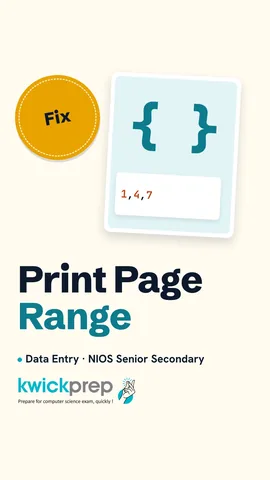
| 1,4,7 | pages 1, 4, 7 | 3 pages |
| 2-4,9 | 2, 3, 4 and 9 | 4 pages |
Pause and predict
| Pages box: 1-3,6 |
| Copies: 2, Collated |
| How many sheets print, one-sided? |
Quick answers
Pages 1-3,6 with 2 collated copies: how many one-sided sheets?
Eight.
What does collated mean?
Each copy prints as a full set in order.
KwickClips from this lesson
Short clips, one idea each. Good for revision the night before.
The full lesson, in text
Hello students, welcome to Kwickprep. You wanted to print only page three, but the printer printed all forty pages. That wastes paper and ink. Today we will learn how to preview and print exactly what you need.
Printing well starts before you press Print. First, proofread the document, checking spelling, names and numbers. Second, use Page Setup to fix the paper size, orientation and margins. Third, use Print Preview, which shows each page exactly as it will come out of the printer.
Here are three Page Setup terms. Paper size is the size of the sheet, and A4 is the standard in Indian offices and schools. Orientation is the direction of the page, and portrait is tall while landscape is wide, which suits big tables. Margins are the blank borders around the text, and Word's Normal setting is two point five four centimetres, which is one inch.
Now let us open the print screen. In Microsoft Word, click File, then Print, or press Ctrl+P. LibreOffice Writer uses the same File, Print menu and the same shortcut. Google Docs also uses File, Print and Ctrl+P. In Word, the print screen shows the preview on the right side.
The print screen has several options. Printer lets you choose which printer to use, including Microsoft Print to PDF. Copies sets how many sets to print. Pages lets you print all pages, only the current page, or a page range. You can print on one side or both sides, which is called duplex printing. Collated means each copy prints as a full set in order, like one two three, then one two three.
The page range box follows simple rules. Typing three prints only page three. A hyphen means a range, so two hyphen five prints pages two, three, four and five. A comma separates single pages, so one comma four comma seven prints three pages. You can mix them, so two hyphen four comma nine prints four pages.
Let us try one. The pages box says one hyphen three comma six. Copies is two, and collated is on. Pause and think, how many sheets of paper print on one side? One hyphen three comma six is four pages, and two copies make eight sheets, in the order one, two, three, six, twice.
Here are the printing steps as a flowchart. First, press Ctrl+P to open the print screen. Next, choose the correct printer. Then enter the pages and the number of copies. Now check the preview, and if it looks right, click Print. If not, go back and fix the Page Setup, then preview again.
Sometimes you need a digital copy instead of paper, for example to email a bill. Choose Microsoft Print to PDF as the printer on Windows, and save the file. Or use File, Save As and choose PDF as the type. A PDF looks the same on every phone and computer.
Finally, some common problems. If nothing prints, the printer may be off or offline, so switch it on and check its cable or Wi-Fi. If one line spills onto a new page, adjust the margins slightly. If a wide table is cut off, change the orientation to landscape. For a paper jam, switch off and follow the steps in the printer's guide.
Let us recap. Before printing, proofread, check Page Setup, then look at Print Preview. Ctrl+P opens the print screen. In the pages box, a hyphen means a range and a comma separates pages. Use collate for full sets, duplex for both sides, or print to PDF for a digital copy.
Courses that teach this
| Course | Unit |
|---|---|
| NIOS Senior Secondary Data Entry Operations (336) | Lesson 3: Basics of Word Processing |
Free to watch, no sign-up. The live classes are the paid course; these lessons stay free either way.
Disclaimer. KwickAcademy is free study material for general learning and revision. Parts of it, including the voice-over, are produced with the help of AI tools and may contain errors; if you spot one, please tell us and we will correct it. Syllabus, marks and exam details follow the latest official board publications available to us, and boards can change them at any time, so always confirm against your board's official website and your school. Using this material does not guarantee any marks or result. Board names and trademarks belong to their owners; Kwickprep is not affiliated with or endorsed by any examination board. We never ask for passwords, OTPs or ID numbers. Your progress is saved only in this browser. Full disclaimer · Privacy