

KwickAcademy Course Topics · 7 min · free
Formatting data — dialog boxes, decimal places, labels, scientific, time, alignment
Learn the Format Cells dialog (Ctrl+1): decimal places, labels vs values, scientific and time formats, alignment and merging cells. Formatting changes how data looks, never the value stored in the cell.
Follows the syllabus of: CBSE Class 9 Information Technology (402)
On screen in this lesson
What is formatting data?
| Changes how data looks, not its value |
| Makes a sheet easy to read |
| Example: 1500 shown as ₹1,500.00 |
| The cell still stores 1500 for calculations |
What is a dialog box?
| A small window that asks for your choices |
| Has tabs, options, and OK and Cancel buttons |
| Nothing changes until you click OK |
Tabs of Format Cells
| Tab | Changes | Example |
|---|---|---|
| Numbers | Number style | Currency, Time |
| Font | Font and size | Bold, 14 pt |
| Alignment | Position of data | Centre, wrap |
| Borders | Lines round cells | Box border |
| Background | Cell fill colour | Yellow fill |
Decimal places
| Value | Decimal places | Shown as |
|---|---|---|
| 78.456 | 0 | 78 |
| 78.456 | 1 | 78.5 |
| 78.456 | 2 | 78.46 |
| 78.456 | 3 | 78.456 |
Decimal places: a trap
| Only the display is rounded |
| The full value is still used in formulas |
| Pause and predict: 2.4 + 2.4 shown with 0 decimals |
Labels and values
| Entry | Type | Default alignment |
|---|---|---|
| Name | Label (text) | Left |
| Riya | Label (text) | Left |
| 85 | Value (number) | Right |
| 15-08-2026 | Value (date) | Right |
Quick answers
Two cells hold 2.4, shown with 0 decimals. What does their sum show?
5, because the real total 4.8 rounds to 5.
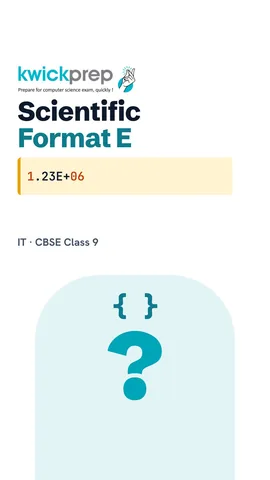
What does E+06 mean?
Times 10 to the power 6.
KwickClips from this lesson
Short clips, one idea each. Good for revision the night before.

The full lesson, in text
Hello students, welcome to Kwickprep. Is 0.5 the same as fifty percent? Yes, the value is the same, only the look changes. That change of look is called formatting. Today we will learn the Format Cells dialog box, decimal places, labels, scientific and time formats, and alignment.
Formatting data means changing how data looks on the sheet. It changes the look, never the value stored inside the cell. Good formatting makes a sheet easy to read. For example, fifteen hundred can be shown as rupees fifteen hundred, point zero zero. The cell still stores just fifteen hundred, so every calculation stays correct.
A lot of formatting is done in a dialog box. A dialog box is a small window that opens to ask for your choices. It has tabs along the top, options to pick, and OK and Cancel buttons at the bottom. Nothing on the sheet changes until you click OK.
Here are the steps to open the Format Cells dialog box. First, select the cells you want to format. Then right-click them and choose Format Cells, or open the Format menu and choose Cells. Next, pick a tab, such as Numbers or Alignment, and choose an option. Finally, click OK to apply it. The shortcut Ctrl plus 1 also opens this dialog box.
The Format Cells dialog box has several tabs. The Numbers tab changes the style of numbers, like currency or time. The Font tab changes the font, size and style, like bold fourteen point. The Alignment tab sets where data sits inside the cell. The Borders tab draws lines around cells. The Background tab fills a cell with a colour.
Decimal places are the digits after the decimal point. Set them in the Numbers tab, or use the Add and Delete Decimal Place buttons on the toolbar. With zero decimal places, seventy eight point four five six shows as seventy eight. With one place, it shows seventy eight point five, because Calc rounds the look. With two places, it shows seventy eight point four six. With three places, you see the full value again.
Here is a common trap. When you reduce decimal places, only the display is rounded. The full value is still used in every formula. Pause and predict: two cells hold two point four each, shown with zero decimal places, so each looks like two. Their sum shows five, not four, because the real total is four point eight, which rounds to five.
Data in a cell is either a label or a value. A label is text, like the heading Name, and it is left aligned by default. A student name like Riya is also a label, so it sits on the left. A number like eighty five is a value, and it sits on the right. A date is stored as a value too, so it also sits on the right. So if a number sits on the left, Calc has treated it as text.
Scientific format shows very big or very small numbers in a short form. The letter E means times ten to the power. Twelve lakh thirty four thousand five hundred sixty seven, with two decimal places, shows as one point two three E plus zero six. That means one point two three times ten to the power six. A tiny value like zero point zero zero zero four five shows as four point five zero E minus zero four. The distance from Earth to the Sun, fifteen crore kilometres, shows as one point five zero E plus zero eight.
Time format shows a value as a time of day. Choose the Time category in the Numbers tab and pick a format code. H H colon M M shows hours and minutes, like fourteen thirty, good for a school bell timetable. H H colon M M colon S S adds seconds, useful for race timing. With A M slash P M, the same time shows as two thirty P M, like a train departure time.
Alignment decides where data sits inside a cell. Horizontal alignment moves data left, centre or right. Vertical alignment moves data to the top, middle or bottom of a tall cell. Text orientation rotates text by some degrees, useful for narrow column headings. Wrap text automatically breaks long text into more lines inside the same cell.
A report title usually sits across the whole table. First, select the cells, for example A1 colon E1. Then open the Format menu, choose Merge and Unmerge Cells, and then Merge and Center Cells. Now one wide cell holds the title, neatly centred above the table.
Let us revise what we learned today. Formatting changes how data looks, never the value stored in the cell. Open the Format Cells dialog box by right-clicking or pressing Ctrl plus 1. Decimal places round only the display, not the value used in formulas. Labels are text and sit left, while values sit right by default. Scientific format uses E for powers of ten, time uses codes like H H colon M M, and alignment positions data in the cell. Try each format on your own marks sheet.
Courses that teach this
| Course | Unit |
|---|---|
| CBSE Class 9 Information Technology (402) | Electronic Spreadsheet |
Free to watch, no sign-up. The live classes are the paid course; these lessons stay free either way.
Disclaimer. KwickAcademy is free study material for general learning and revision. Parts of it, including the voice-over, are produced with the help of AI tools and may contain errors; if you spot one, please tell us and we will correct it. Syllabus, marks and exam details follow the latest official board publications available to us, and boards can change them at any time, so always confirm against your board's official website and your school. Using this material does not guarantee any marks or result. Board names and trademarks belong to their owners; Kwickprep is not affiliated with or endorsed by any examination board. We never ask for passwords, OTPs or ID numbers. Your progress is saved only in this browser. Full disclaimer · Privacy