

KwickAcademy Course Topics · 6 min · free
Embed audio and video in a HTML page
Learn to embed sound and video with the HTML audio and video tags, their attributes, the source tag and common mistakes. The audio and video tags need src to name the file and controls to show the play buttons.
Follows the syllabus of: CBSE Class 10 Computer Applications (165)
On screen in this lesson
What embedding means
| Embed: place a media file inside the page |
| The file plays in the browser itself |
| No separate player app is needed |
| HTML5 gives two tags: audio and video |
Audio attributes
| Attribute | What it does | Example |
|---|---|---|
| src | file to play | src="a.mp3" |
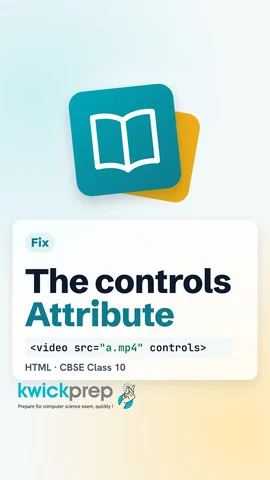
| controls | shows buttons | controls |
| autoplay | starts by itself | autoplay |
| loop | plays again | loop |
| muted | starts silent | muted |
Boolean attributes
| controls, autoplay, loop, muted need no value |
| Writing the word alone switches it on |
| Leave the word out to switch it off |
Extra video attributes
| Attribute | What it does | Used in |
|---|---|---|
| width, height | size in pixels | video only |
| poster | picture before play | video only |
| controls, loop | buttons, repeat | audio and video |
| autoplay, muted | start, silence | audio and video |
Common file formats
| Media | Format | Type value |
|---|---|---|
| Audio | MP3 | audio/mpeg |
| Audio | WAV | audio/wav |
| Audio | OGG | audio/ogg |
| Video | MP4 | video/mp4 |
| Video | WebM | video/webm |
The older embed tag
| <embed src="song.mp3"> also places media |
| It is an empty tag with no closing tag |
| It has no controls attribute of its own |
| Prefer audio and video in new pages |
Quick answers
What does <audio src="bell.mp3" loop></audio> show?
Nothing, because there is no controls attribute.
Which attribute shows a picture before a video plays?
poster.
KwickClips from this lesson
Short clips, one idea each. Good for revision the night before.
The full lesson, in text
Hello students, welcome to Kwickprep. Your school website wants to play the morning prayer and show the annual day video. Can a plain web page do that? Yes, with just two tags. Today we will learn the audio tag and the video tag, their attributes, and the mistakes that cost marks.
First, a new term. To embed means to place a sound or video file inside the web page. The file then plays right inside the browser window. The student does not need to open a separate music or video app. Modern HTML, called HTML five, gives us two tags for this, audio and video.
Here is the simplest audio tag. It has an opening tag and a closing tag. The src attribute, short for source, gives the name of the sound file, prayer dot M P three. The word controls shows play, pause and volume buttons. Without controls, the page shows nothing, and the student cannot play the sound.
The audio tag has five common attributes. The src attribute names the file to play. The controls attribute shows the play and pause buttons. The autoplay attribute starts the sound as soon as the page opens. The loop attribute starts the sound again when it ends. The muted attribute starts the sound with the volume off.
Four of these are called Boolean attributes. A Boolean attribute is just on or off, so it needs no value. Writing the word alone switches it on. To switch it off, simply do not write it.
The video tag works the same way. The src attribute names the video file, annual dot M P four. Width and height set the size of the video box in pixels. Controls shows the play bar. The poster attribute shows a picture, cover dot J P G, before the video starts playing.
Let us compare which attributes belong where. Width and height are used only with video. Poster is also only for video, because audio has no picture. Controls and loop work in both tags. Autoplay and muted also work in both tags.
Not every browser plays every file format. So we can list more than one file with the source tag. The browser tries the first source, and if it cannot play it, it tries the next. The type attribute tells the browser the format, like video slash M P four. The text line is fallback text, shown only in a very old browser.
Here are the formats you should know. M P three is the most common audio format, and its type is audio slash M P E G. Wave files are another audio format, with larger files. O G G is an open audio format. M P four is the most common video format. Web M is an open video format made for the web.
Some older books also show the embed tag. It can place a sound or video file on the page too. It is an empty tag, so it has no closing tag. It does not have its own controls attribute, so the browser decides what to show. For new pages, always prefer the audio and video tags.
Watch out for four common mistakes. If you forget controls, the student sees nothing to click. If the file name or folder is wrong, the media will not load. Browsers often block autoplay with sound, so add muted if autoplay must work. And poster works only with video, never with audio.
Pause and predict. What does a visitor see on the page for this code? The answer is nothing at all. There is no controls attribute, so no buttons appear. The loop attribute only matters after the sound starts playing.
Now let us put it all together in one page. The heading says Annual Day. Below it, the video tag plays day dot M P four, four hundred pixels wide, with controls. Then the audio tag plays song dot M P three with its own controls. Keep the media files in the same folder as the page, so the names work.
Let us revise what we learned today. To embed means to place media inside the web page. The audio and video tags need src and usually controls. Autoplay, loop and muted are Boolean attributes that switch features on. Width, height and poster belong to the video tag. And the source tag lets you give the same media in many formats. Try making a page with your favourite song and a short video.
Courses that teach this
| Course | Unit |
|---|---|
| CBSE Class 10 Computer Applications (165) | HTML |
Voice-over in this lesson is AI-generated. The script is written and checked by Kajal Ma'am. Boards can revise a syllabus mid-year, so confirm anything you plan around against the official board circular. Keep your passwords, OTPs and ID numbers to yourself — we never ask for them. To reach Kajal Ma'am, use the WhatsApp button; sharing your number there is how we call you back.
Free to watch, no sign-up. Live classes with Kajal Ma'am are the paid course; these lessons stay free either way.