

KwickAcademy Course Topics · 5 min · free
Share and Review a Spreadsheet: sharing, opening and saving a shared spreadsheet, recording changes
Sharing lets many users edit one Calc file together; recording changes shows who changed what, so a reviewer can accept or reject. Share from Tools, Share Spreadsheet; record with Ctrl+Shift+C.
Follows the syllabus of: CBSE Class 10 Information Technology (402)
On screen in this lesson
Why share a spreadsheet?
| Many users edit the same file together |
| No mixing of old and new copies |
| Everyone sees one updated version |
| Changes can be tracked and reviewed |
Before you share
| Save the file in .ods format |
| Keep it in a shared network folder |
| Set your name: Tools > Options > User Data |
| Your name is shown with your changes |
Limits in shared mode
| Some features are switched off while shared |
| Example: inserting charts, merging cells |
| Stop sharing: untick the same box |
| The dialog lists who has the file open |
Opening a shared spreadsheet
| Open it normally from the network folder |
| Calc shows a message: shared mode |
| Title bar shows (shared) |
| Other users can have it open at the same time |
Saving a shared spreadsheet
| Press Ctrl+S as usual |
| Calc merges your changes with others' |
| Others' changes appear after you save |
| If two edit the same cell: a conflict |
Resolve Conflicts dialog
| Button | Keeps |
|---|---|
| Keep Mine | Your value |
| Keep Other | Other's value |
| Keep All Mine | All of yours |
| Keep All Others | All of theirs |
Quick answers
Ria saves C4 = 72 first. Aman sets C4 = 75 and clicks Keep Mine. What does C4 show?
75, Aman's value.
How do you start recording changes?
Edit, Track Changes, Record Changes, or Ctrl+Shift+C.
KwickClips from this lesson
Short clips, one idea each. Good for revision the night before.
The full lesson, in text
Hello students, welcome to Kwickprep. Five subject teachers enter marks in the same result file. If each works on a separate copy, whose copy is correct? LibreOffice Calc lets many people work on one shared file and records who changed what. Today we will learn to share, open, save and review a spreadsheet, and to record changes.
First, why share a spreadsheet at all? Sharing lets many users work on the same file together. There is no confusion between an old copy and a new copy. Everyone sees one updated version after saving. And changes can be recorded, so someone can review and accept them.
Get three things ready before sharing. Save the file in the ODF spreadsheet format, dot ods. Keep it in a folder on the school network that all users can open. Each user should enter their name under Tools, Options, LibreOffice, User Data. Calc uses that name to show who made each change.
Here are the steps. Open the file in Calc. Open the Tools menu and choose Share Spreadsheet. Tick the box that shares the spreadsheet with other users. Click OK. Calc asks you to save the file in shared mode, so confirm. Now the title bar shows the word shared next to the file name.
Shared mode has a few limits. Some features are switched off while a file is shared, so that users do not clash. For example, you may not be able to insert charts or merge cells. To stop sharing, open Share Spreadsheet again and untick the box. The same dialog also lists the users who have the file open.
Opening a shared file is simple. Open it in the normal way from the network folder. Calc shows a message that the file is in shared mode and some features are not available. The title bar shows the word shared. Other users can have the same file open at the same time.
Now saving. Save a shared file the normal way, with Ctrl and S. When you save, Calc merges your changes with changes other users have already saved. You see their changes after you save. But if two users changed the same cell, Calc reports a conflict.
When there is a conflict, the Resolve Conflicts dialog opens. Keep Mine keeps your value for the selected cell. Keep Other keeps the other user's value. Keep All Mine keeps your value in every conflict at once. Keep All Others keeps the other user's value in every conflict at once.
Now pause and predict. Ria changes cell C4 to seventy two and saves first. Then Aman changes the same cell to seventy five and saves, so a conflict appears. Aman clicks Keep Mine. What does C4 show? It shows seventy five, because Aman kept his own value.
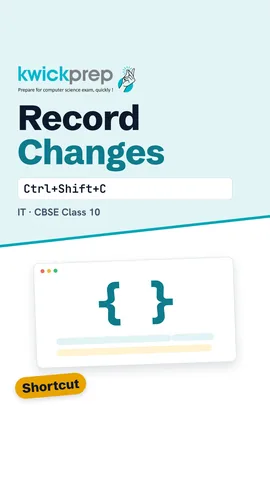
Now the review part, recording changes. Recording changes means Calc remembers every edit, so a reviewer can check it later. Open Edit, then Track Changes, then Record Changes, or press Ctrl, Shift and C. Every changed cell now gets a coloured border. Point the mouse at that cell to see who changed it, when, and the old value.
A reviewer, like the class teacher, then checks each change. Open Edit, Track Changes, and then Manage. Accept keeps the selected change. Reject undoes it, and the old value comes back. Accept All or Reject All handles every change in one click. You can also add a comment to a change from the Track Changes menu to explain why.
Let us revise what we learned today. To share, open Tools, Share Spreadsheet, tick the box and click OK. Open a shared file normally, and the title bar shows shared. Save with Ctrl and S, and resolve conflicts if two users changed one cell. To record changes, use Edit, Track Changes, Record Changes. To review them, open Manage, then accept or reject each change.
Courses that teach this
| Course | Unit |
|---|---|
| CBSE Class 10 Information Technology (402) | Electronic Spreadsheet (Advanced) using LibreOffice Calc |
Free to watch, no sign-up. The live classes are the paid course; these lessons stay free either way.
Disclaimer. KwickAcademy is free study material for general learning and revision. Parts of it, including the voice-over, are produced with the help of AI tools and may contain errors; if you spot one, please tell us and we will correct it. Syllabus, marks and exam details follow the latest official board publications available to us, and boards can change them at any time, so always confirm against your board's official website and your school. Using this material does not guarantee any marks or result. Board names and trademarks belong to their owners; Kwickprep is not affiliated with or endorsed by any examination board. We never ask for passwords, OTPs or ID numbers. Your progress is saved only in this browser. Full disclaimer · Privacy